WISEflow PGR flows
The following are the steps involved in creating PGR flows as discussed in the training.
- Log in to WISEflow
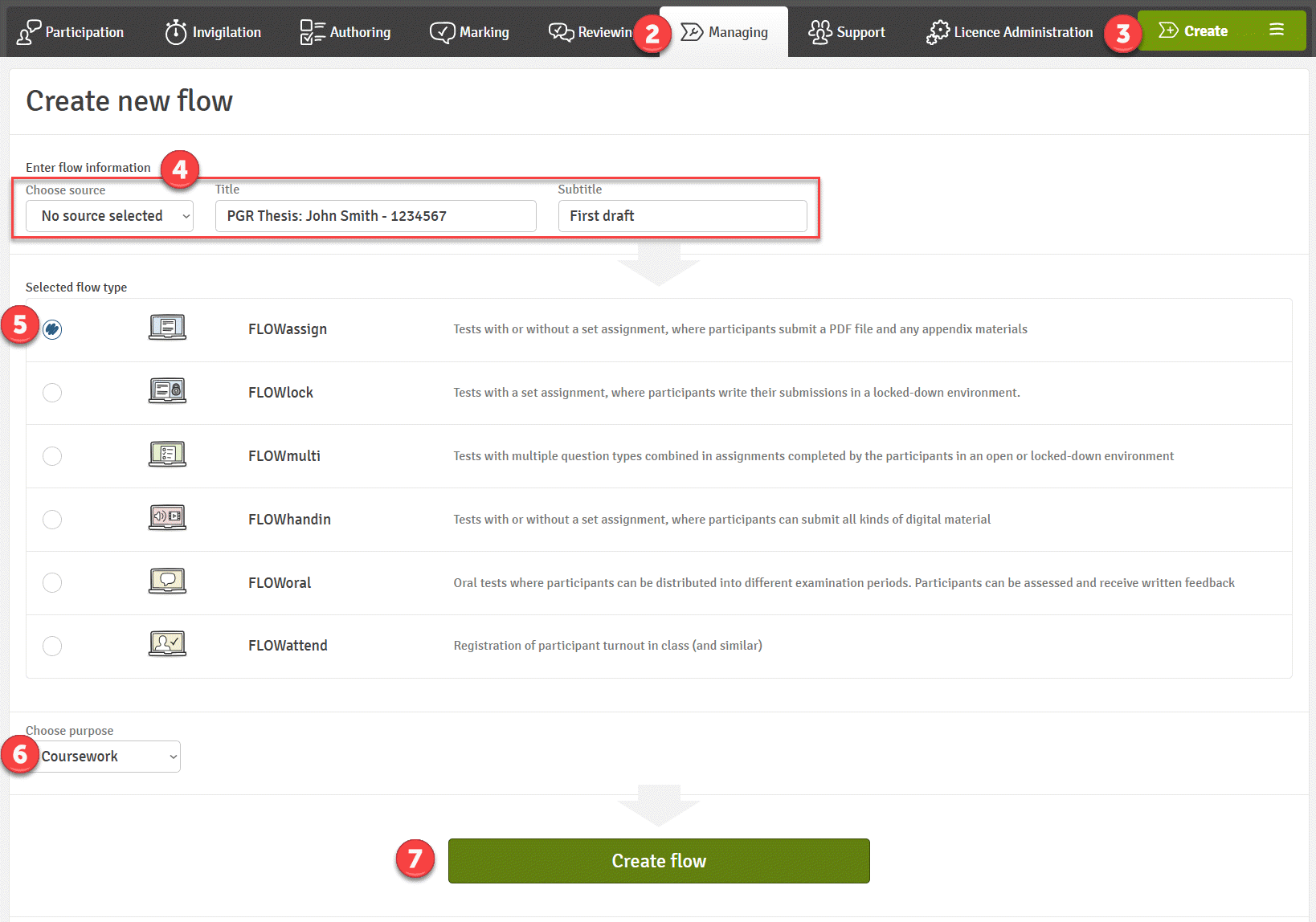
- Click on the 'Managing' tab
- Click 'Create'
- Enter flow information; source (N/A - No Source...), title, subtitle - consistent naming convention as discussed please see described below:
TITLE
"PGR Thesis Student Name - Student ID" example: PGR Thesis John Smith - 01234567
SUBTITLE
"nth draft" example: First draft
|
- Select flow type - FLOWassign
- Choose purpose - Coursework
- Click 'Create flow'
- Add student via searching for their ID. If not found, email WISEflowhelp@brunel.ac.uk the student ID, first name, last name and Brunel email address and request to make their WISEflow account.
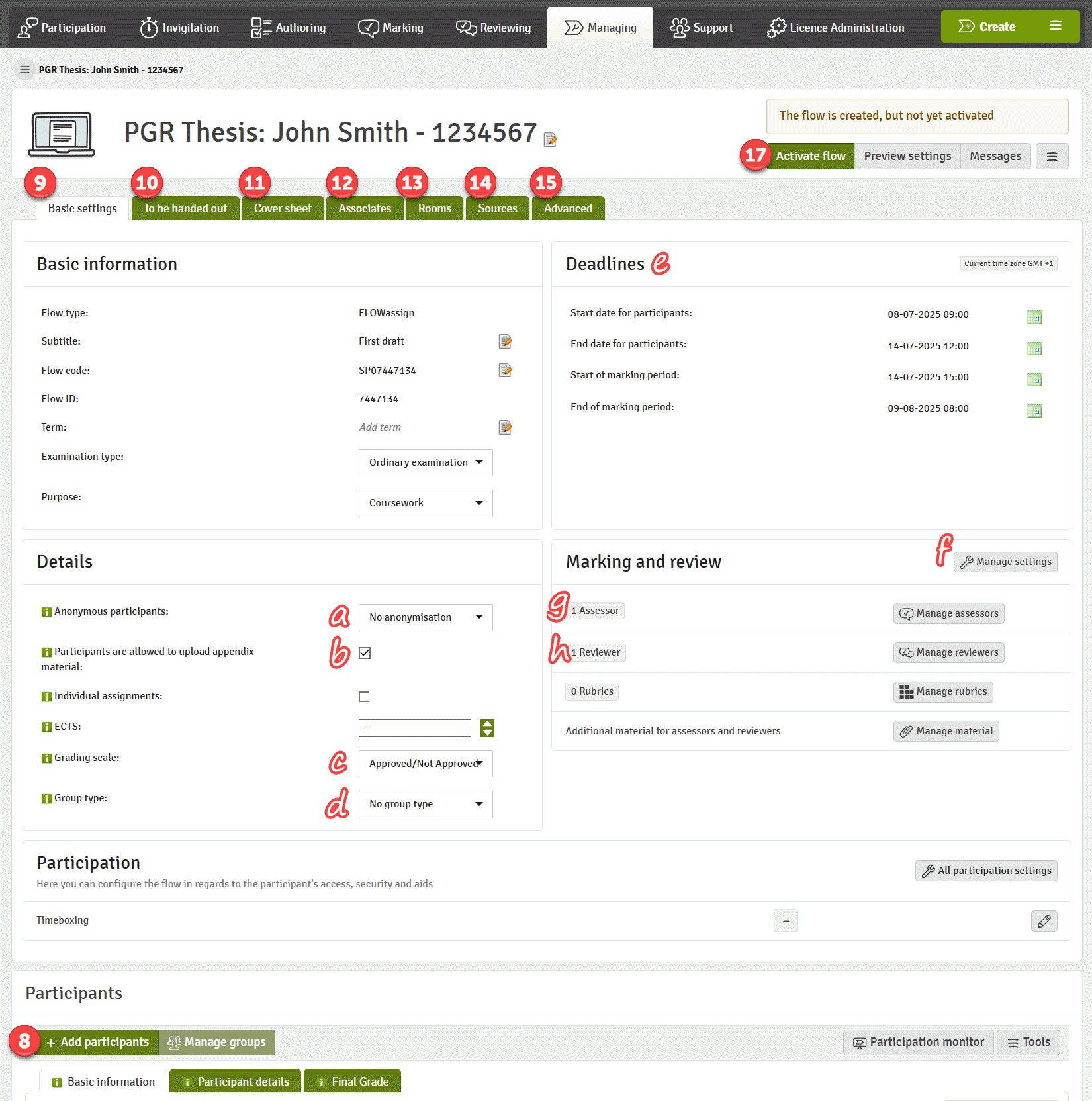
- Update as necessary; Basic information, Deadline, Details, Marking and review
- No anonymisation - marker will see student name
- Permit appendix material (leave enabled)
- Grading scale = Approved Not Approved.
- No group type.
- Deadlines
| Set up start date and time for participants |
When student can access flow and submit |
| Set up end date and time for participants |
Student submission deadline |
| Set up start of assessment period for markers |
When markers can access the submission to mark |
| Set up end date and time for markers |
Marking deadline |
- Ensure 'Similarity is enabled' (it is by default enabled). NOTE: the submission will be queued based on the original student submission deadline. If they submit early, this will not make things quicker, even if you then change the submission deadline after the submission.
- Add assessor (this is their supervisor) and assign student to the assessor.
- Add reviewer(s) and assign student.
- Skip 'To be handed out' as not necessary.
- Cover sheet (as discussed) please select appropriate cover sheet field.
- Add 'Associates' as necessary. Please note you should always add the other members of the PGR team.
- Skip 'Rooms'.
- Skip 'Sources'.
- Possibly skip 'Advanced' unless permission to hand in late is needed.
- Recheck entered information.
- Click to 'Activate flow'.